
How to: create multiple teams for your organisation
You can create more than one team under your account, that will be linked together under your organisation now. Previously, you could create one team only per account, but we have added this functionality to help larger companies coordinate multiple teams.
With multiple teams, you can now have different parts of your team running with different rates, or different reporting periods. All options you previously had to apply to the entire team can now be set up for separate teams that are all managed under your organisation.
Note: The functions for organisation and multiple team creation are all available on the web only. Login at https://www.driversnote.com/ to get started!
To start, create a single team as you always have.
As part of this, you are now setting up an overall Organization as well, that will allow you to create additional teams if necessary. Your organization is named the same as your first team, but you can change that if you wish.
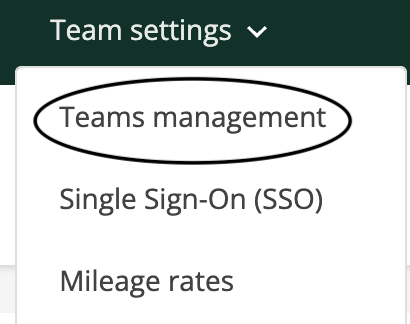
Then, once that single team is created, you will have a new option called Team managent under your Team settings menu.
From here, you can manage your organization, including setting up a new team with the Add team button. There are also options to Manage members and Manage team here.
Using these options, you can add as many teams as you need to your overall organization.